Enterprise AI workspaceprogress visible from day one
Employees work in the same space — projects, files, conversations and every execution's usage stay on the company side.
Daily use
Ready to use
Workbench
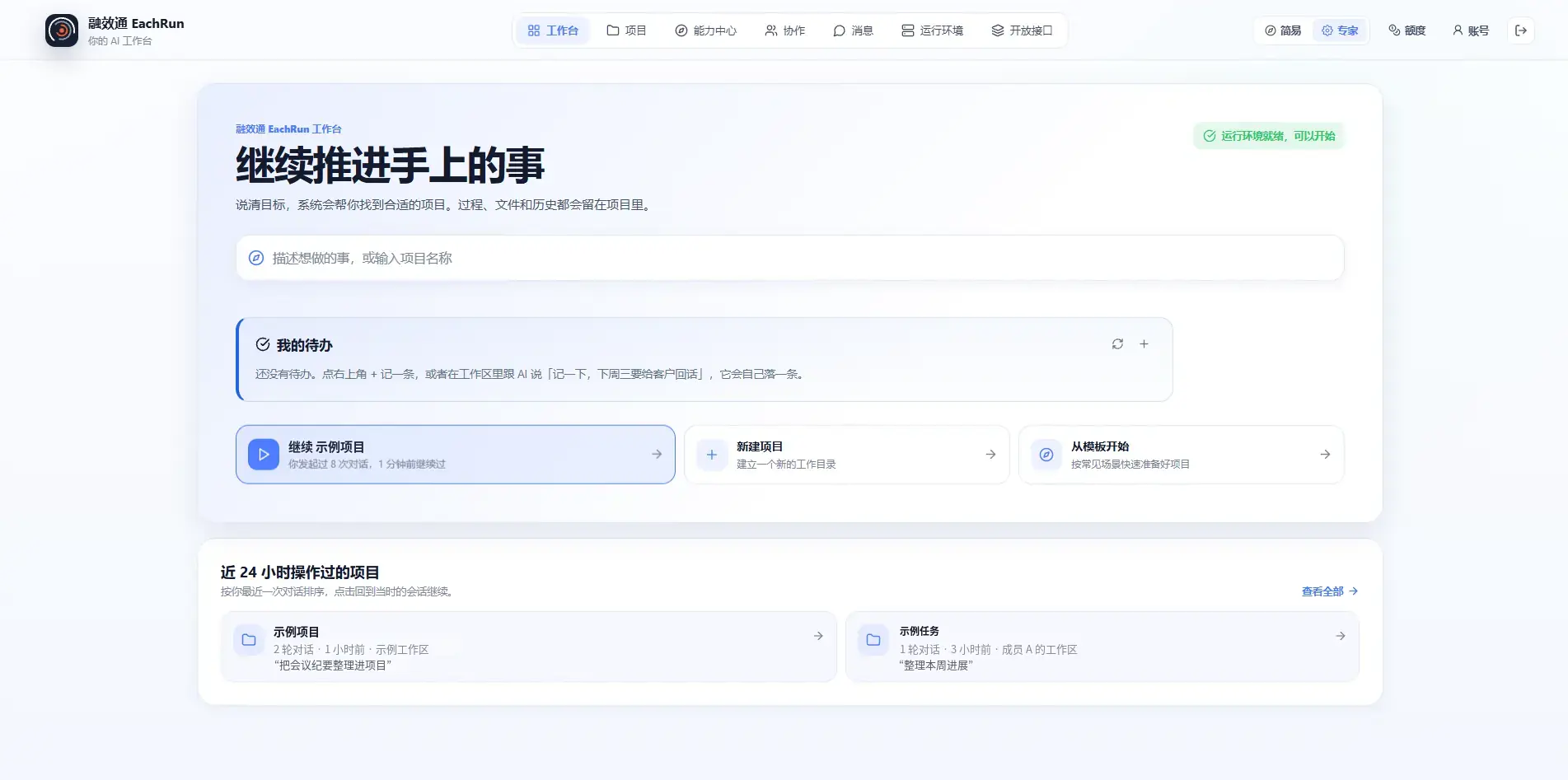
From first sign-in, a clear next step
The workbench guides employees to request a workspace. Once an administrator approves it, they can create projects and start working.
The web app and desktop client offer the same capabilities — projects, files, conversations and tasks stay in sync. Tasks run in the environment the company selects, supporting SaaS, private deployment and appliance.
- Projects, workspaces and remaining quota in one view
- Switch to expert view when more control is needed
Workspace
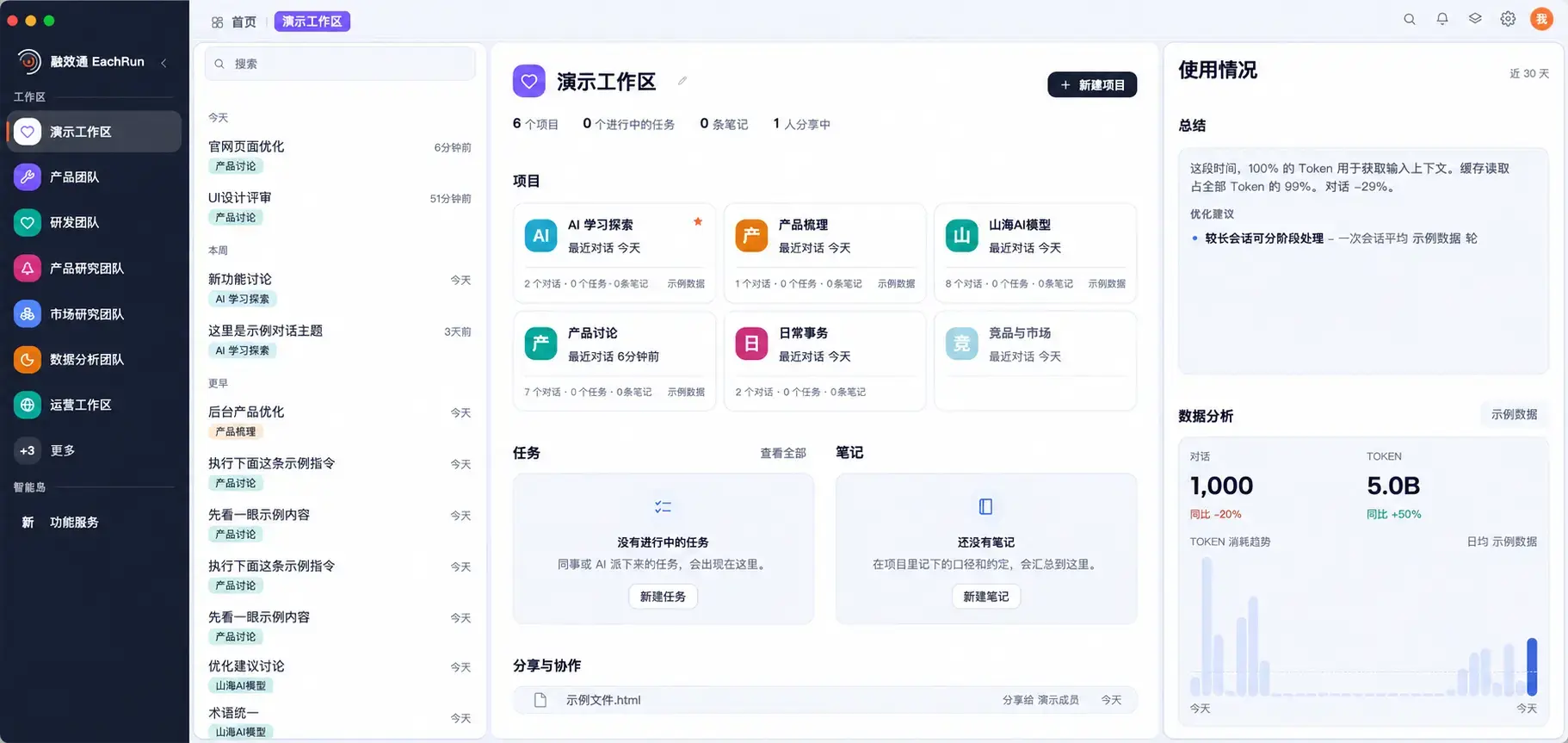
Project data and context stay in the workspace
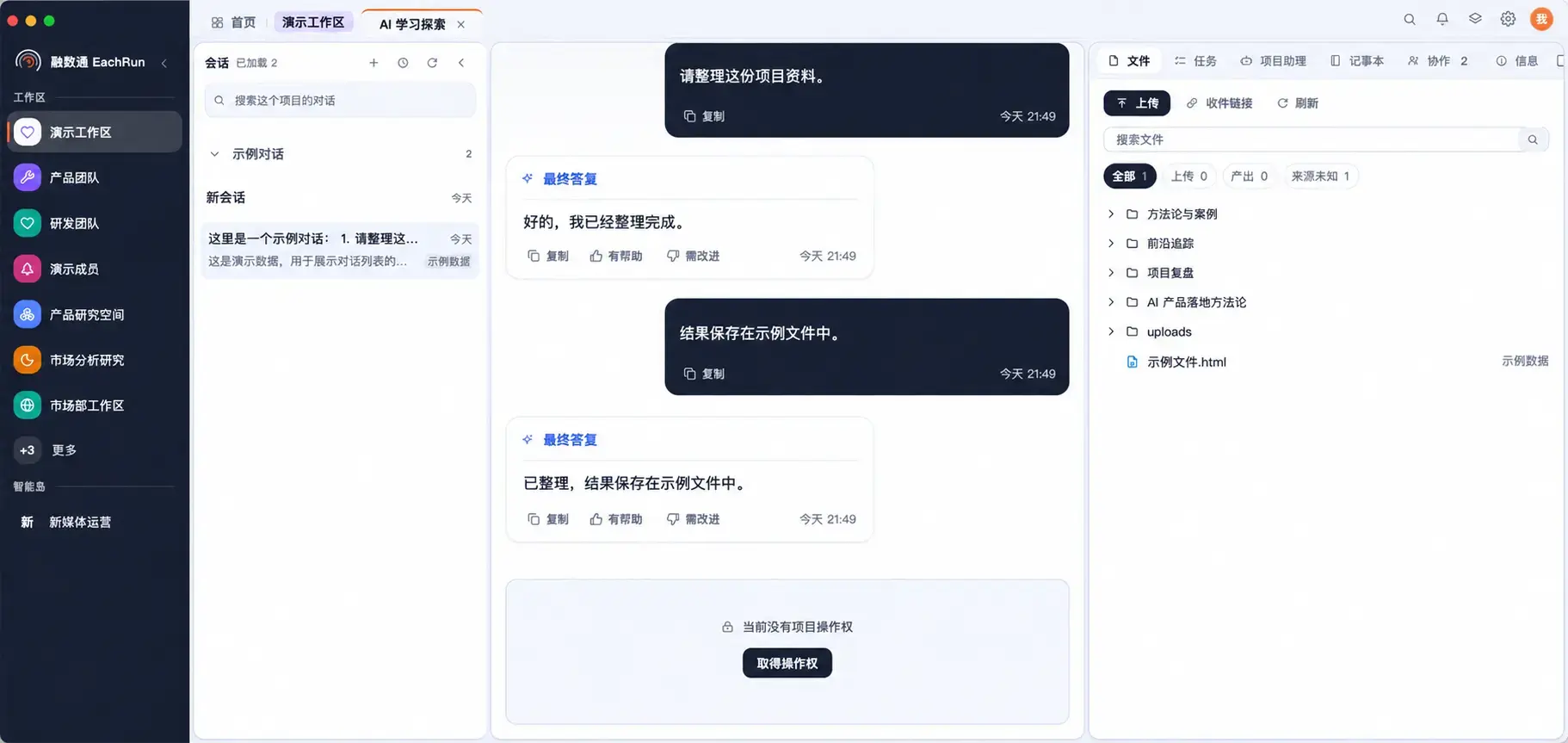
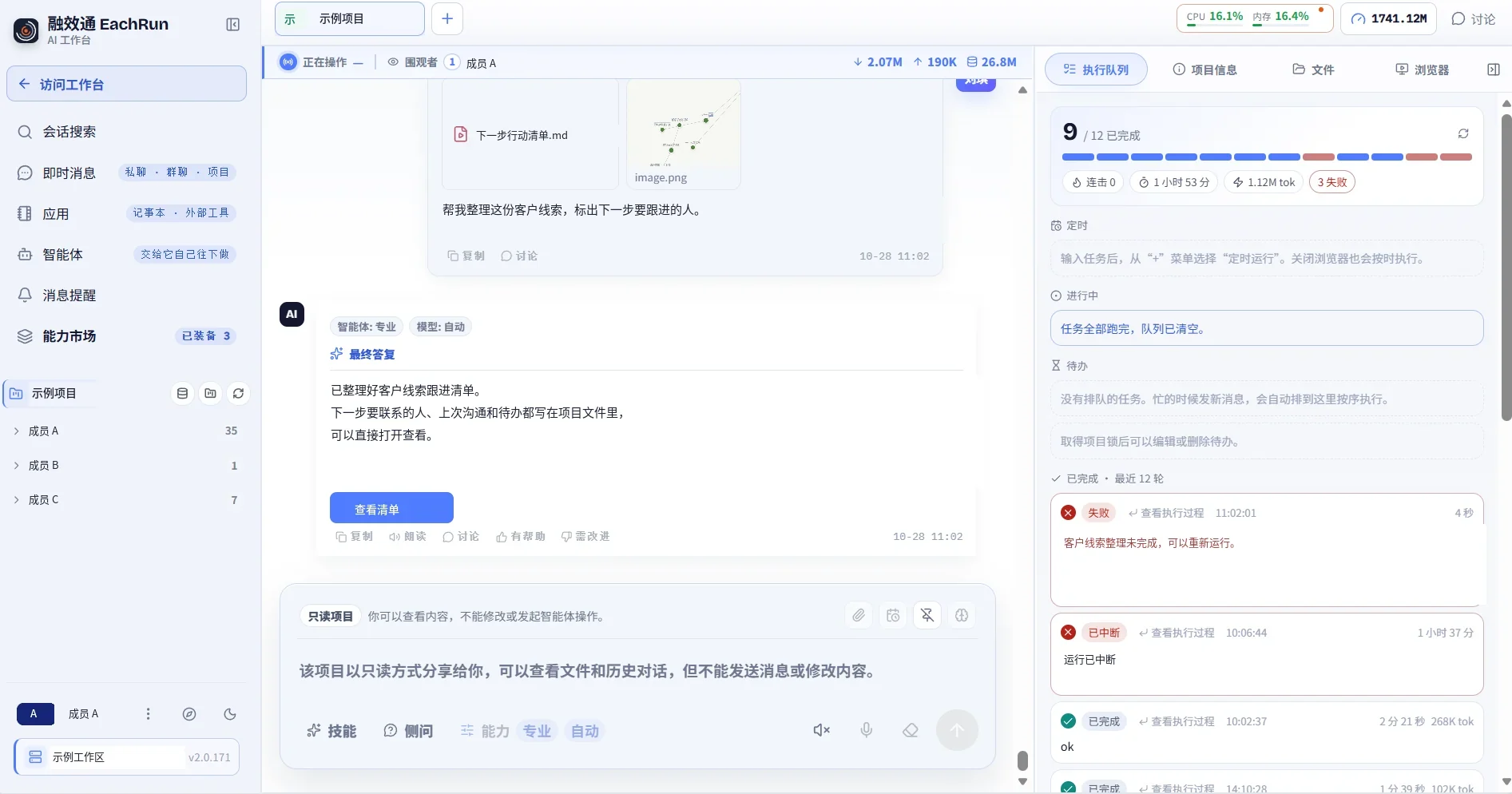
Employees work inside approved workspaces. Files, conversations, tools and execution records are kept together and can be shared or handed over by permission.
- Project context persists across devices and sessions
- Multi-person collaboration, sharing and handover
Apps
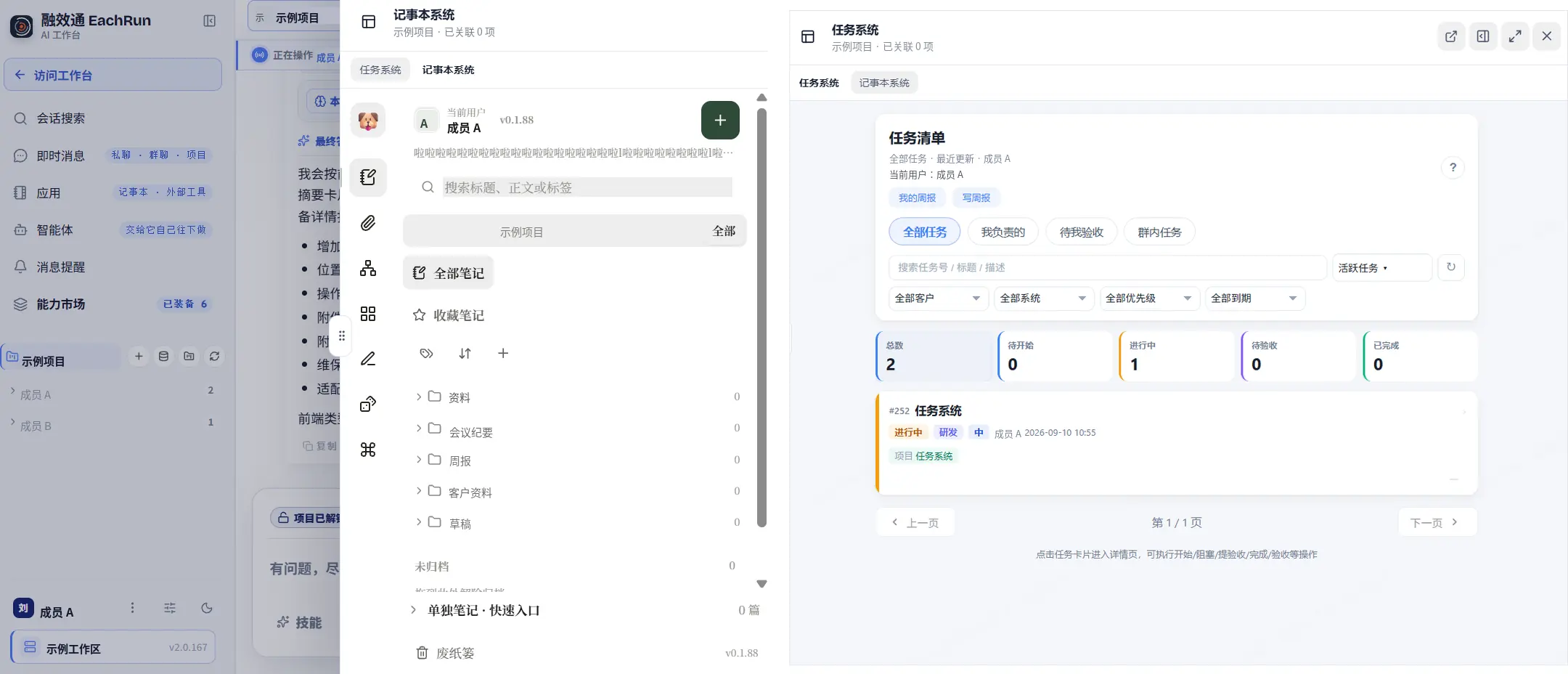
Notes and task system already in the workspace
The workspace comes with a notes system and a task system: jot down project notes, track what needs doing — ready to use. Need other services? Connect them over MCP and call them from the same workspace.
- Notes system and task system included
- Connect other services over MCP
Browser
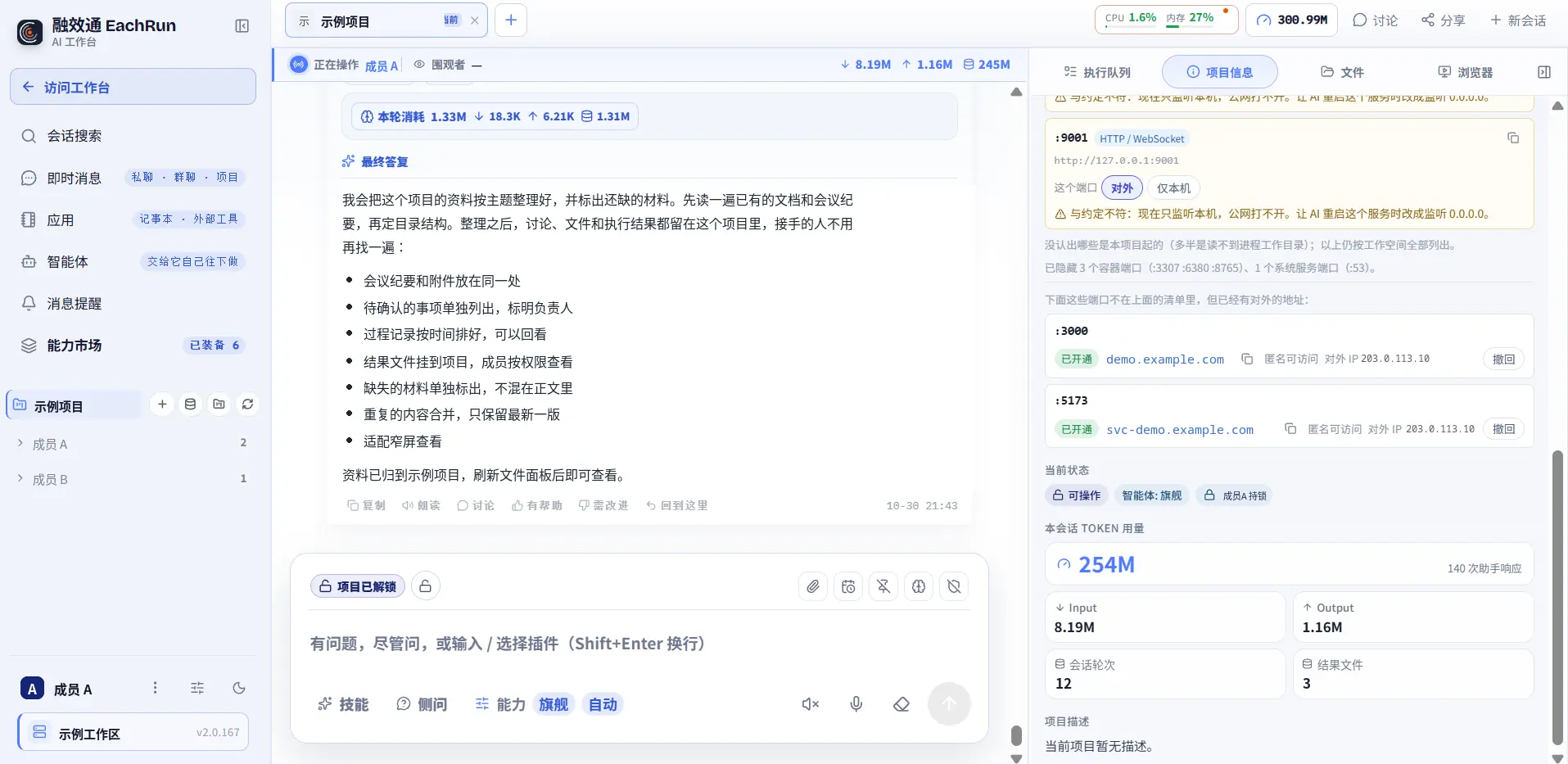
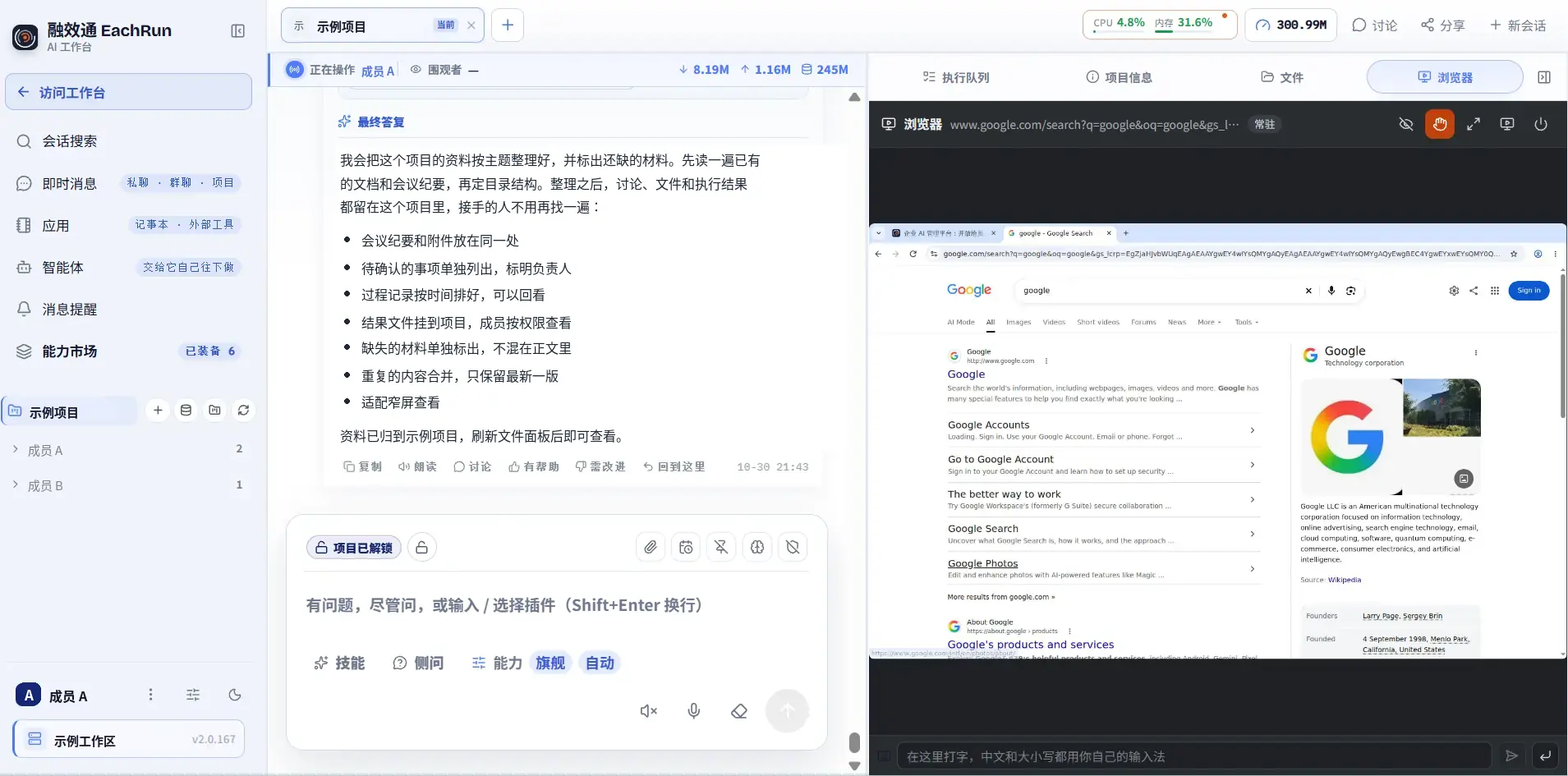
AI opens its own browser, people can take over at any time
The operation is visible in real-time. Employees can take over at any time, and colleagues can watch too — easy for review and handover.
- Execution visible in real-time, take over anytime
- Colleagues can watch along for review
AI quota
Every AI usage traced to an owner
Employees see their balance and current plan; administrators review usage by workspace, project, runtime and model.
- Employees check remaining quota anytime
- Usage verified by workspace, project, runtime and model
Team collaboration, managed for your team
Clear visibility, manageable control, stable operation. People, information, processes and assets in one ecosystem.
Collaboration
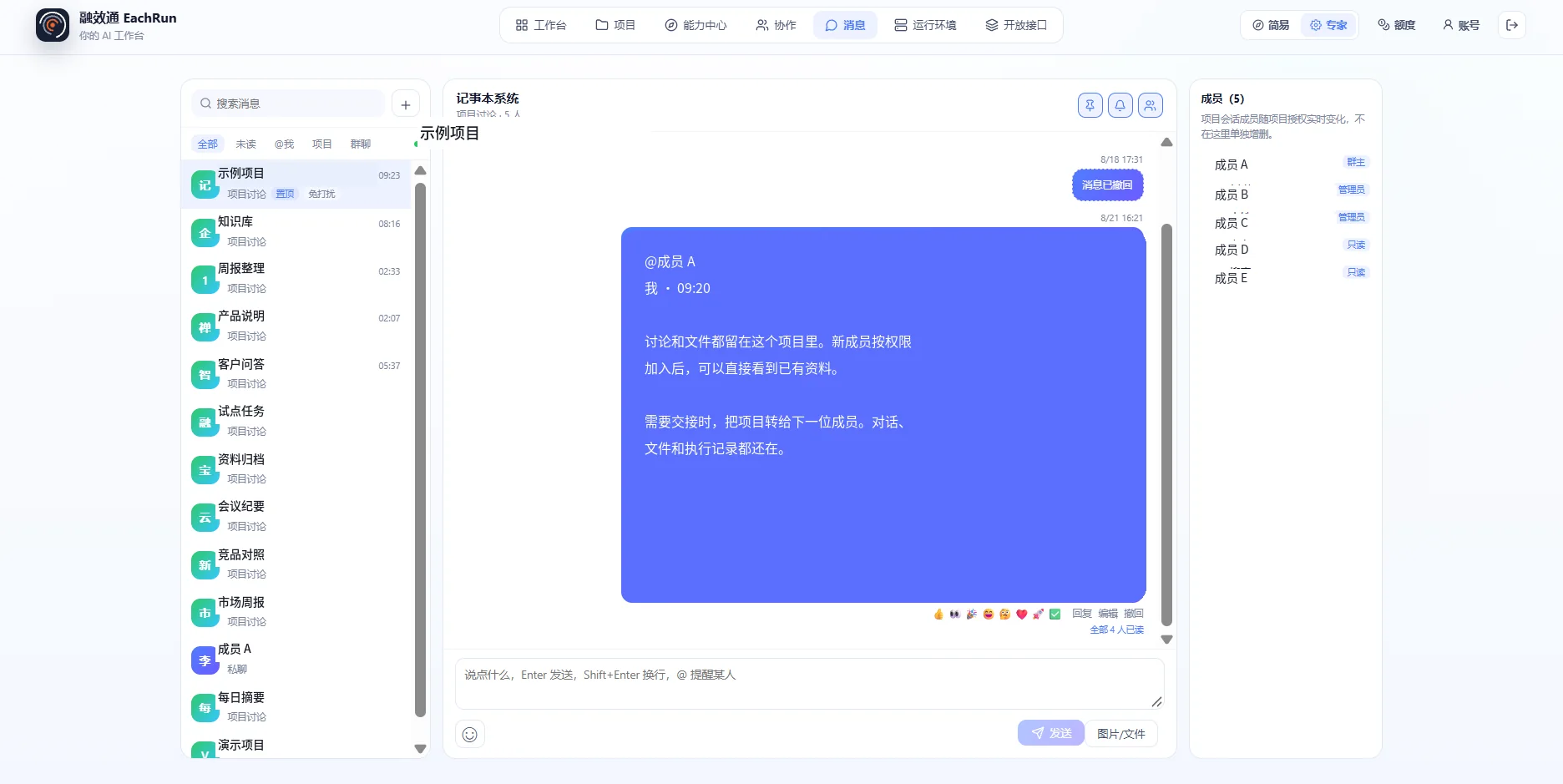
One project one group, members follow project permissions
Project members are automatically added to the project group. When they leave the project, they no longer see subsequent discussions. Supports private chat, @mentions, unread and read status.
- Members, permissions and sharing managed inside the project
- Leaving the project stops further discussion visibility
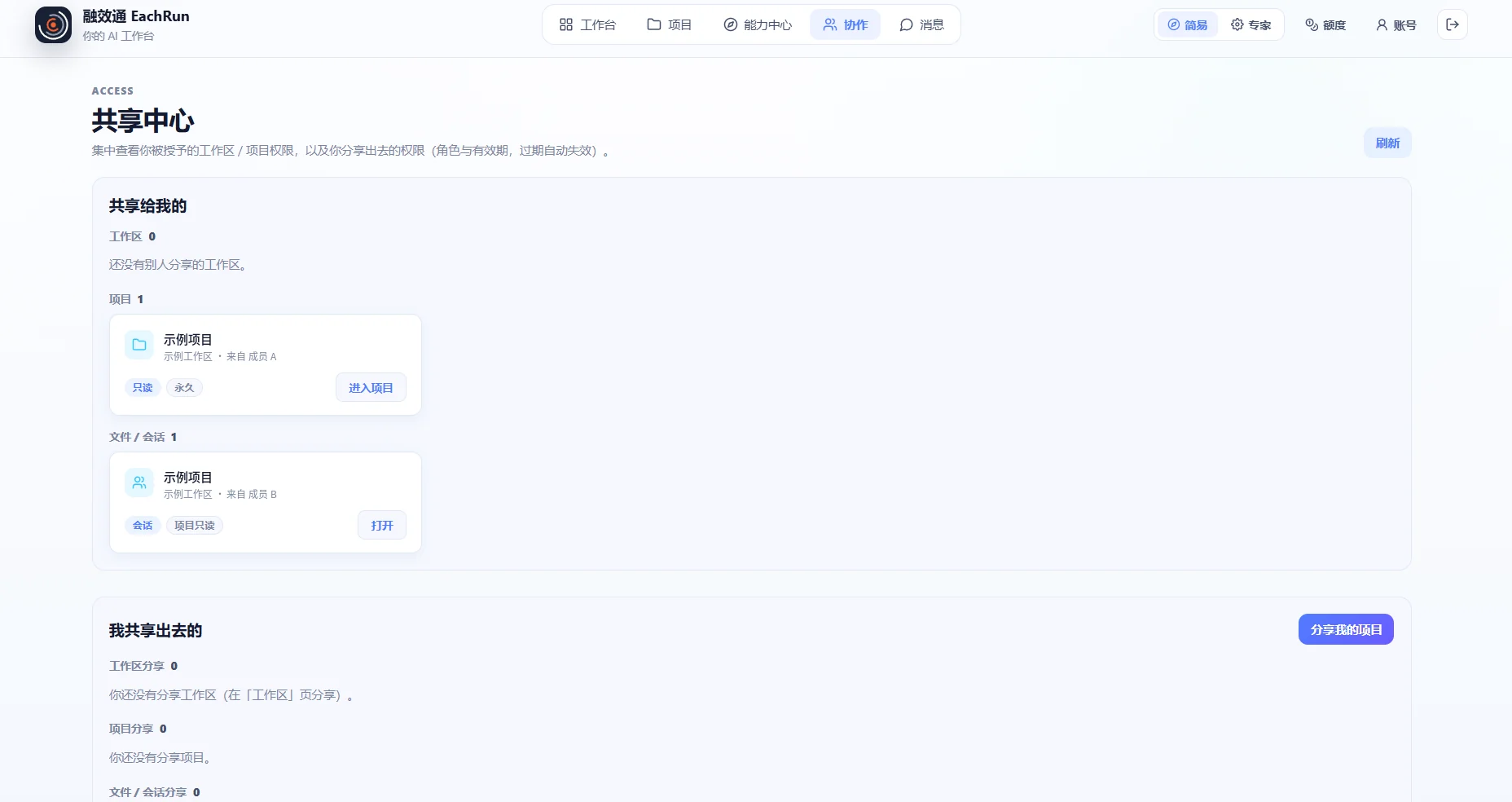
Share center
Completed work reusable in the next project
Templates, processes and project data can be shared by role and expiry, ready for the next project. Permissions can be revoked at any time.
- Share by role and expiry
- Permission revocation centralised
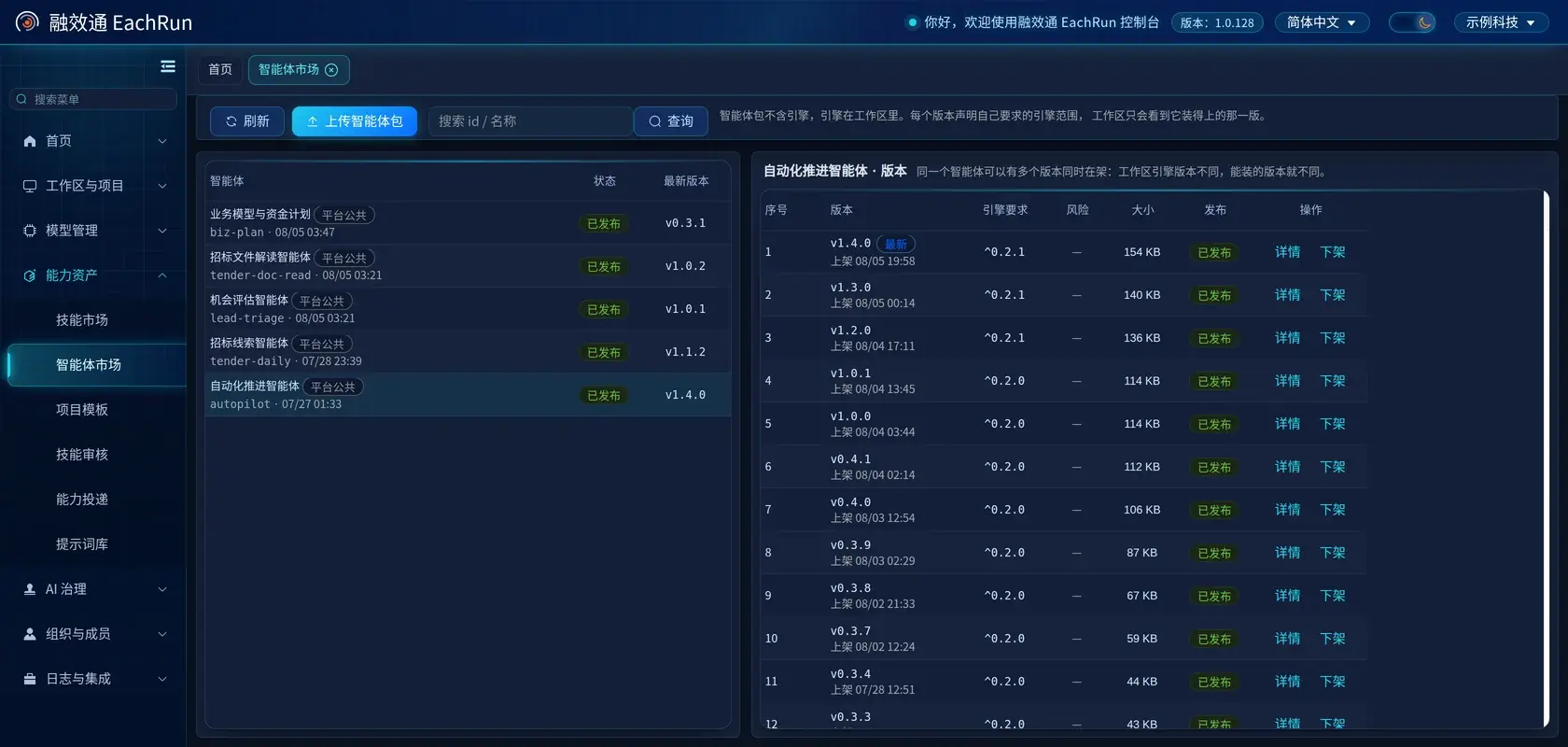
Agent market
Pick an agent by task, install and use
Employees only see agents the company has opened. Publishing, upgrading and removal are decided by the administrator.
- Choose by task, skills and processes already configured
- Platform maintains updates, employees don't manage versions
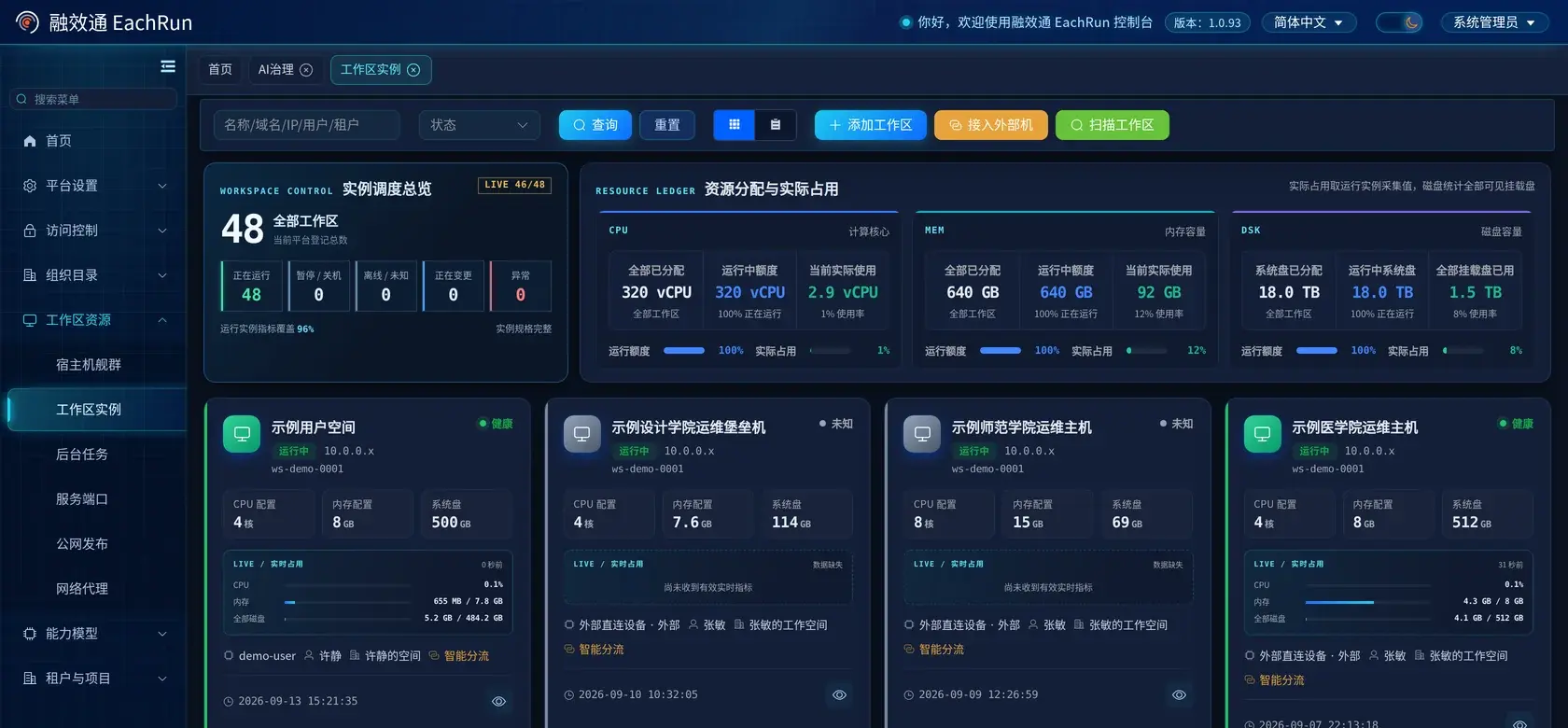
Runtime
Independent runtime, files and tools stay put
Each workspace has independent compute and storage. Employees can run code, save files or open services. Administrators review resource usage.
- CPU, memory and disk allocated per workspace
- Running services openable by approval
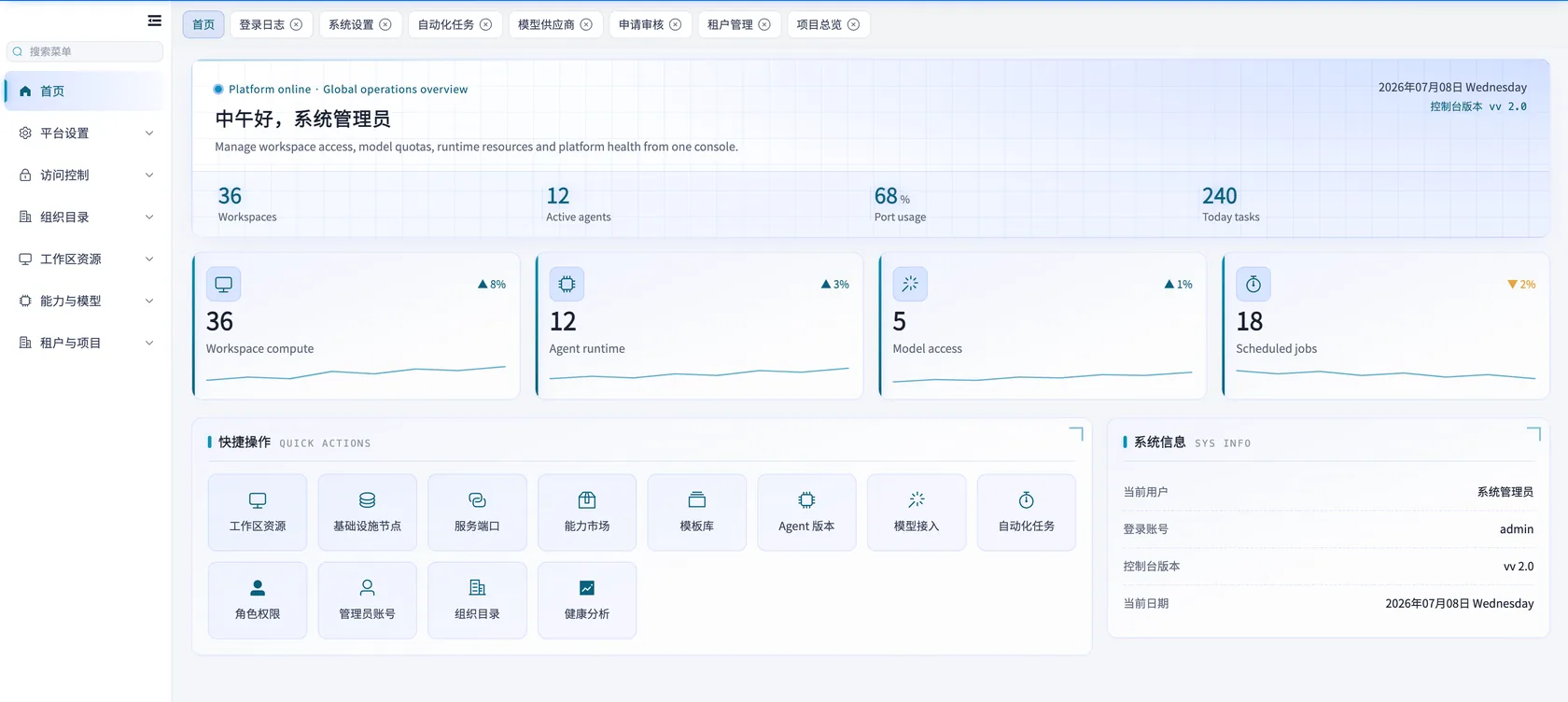
Admin console
Daily administration in one console
Administrators handle workspaces, member permissions, model access, approval requests and login logs here.
- Who can use what, decided by role
- Model providers and keys managed centrally
Work anywhere, on any device
Desktop and web client